Show your calendar on your smartphone
Show your calendar on your smartphone
Share the calendar
You can export the appointments in your Halingo calendar to your smartphone or another device.
Open your calendar and click the cog in the top right. On the settings page, switch on the option "allow the calendar to be shown on other devices".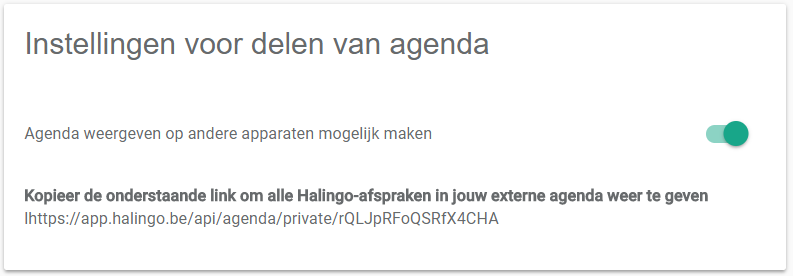
Then copy the link that appears underneath. The simplest route is to connect your calendar to your Google or Microsoft Outlook account. Here is how.
Connect the calendar to your Google account
Go to https://calendar.google.com/calendar/r/settings and, under Add calendar, click From URL.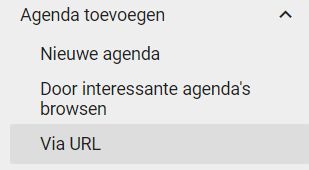
Paste the copied link into the new screen and click Add calendar.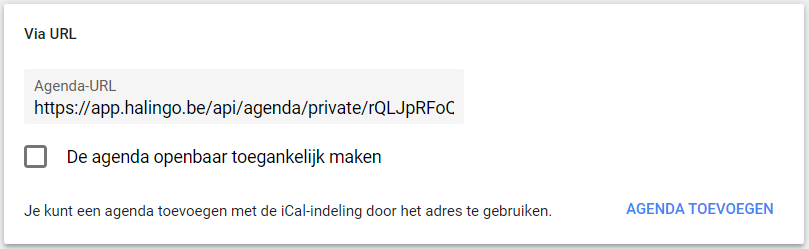
Your Halingo calendar is now in your Google account and shows up in the calendar app on your smartphone. If the appointments are not visible yet, open Settings > Manage calendars in that app and switch on the Halingo calendar.
Connect the calendar to your Microsoft Outlook account
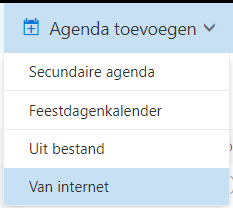
Go to https://outlook.live.com/owa/?path=/calendar/view/Month, and, under Add calendar, click From internet. Paste the copied link into the new window, enter a name and click Save. Your Halingo calendar is now tied to your Outlook account and visible on every device signed in to it.