
Which dot-matrix printer is compatible with Apple?
Which dot-matrix printer is compatible with Apple?
Product details for dot-matrix printers rarely mention Apple compatibility, while Windows is listed. That does not mean the printer will not work on an iMac. The manufacturer provides no support and no printer drivers for it.
Apple therefore uses the CUPS system. On Apple devices you do not install drivers.
Which dot-matrix printers work with Apple?
This list is still growing. We are not responsible if a printer listed here turns out not to be compatible with Apple after all. To be sure, contact the manufacturer first. If your printer is not on the list but does work on an Apple pc, let us know and help other customers.
- Epson LX-350 (9 pin)
- Epson LQ-350 (24 pin)
A printer missing from this list is not necessarily incompatible with an Apple pc.
Printing does not work after installation
If you get strange characters on your certificate after installation, one of the following steps may help. With questions, write to info@halingo.be.
Changing the emulation mode of the printer
On some printers, for example the OKI ML1120 eco, you adjust the factory settings of the dot-matrix printer by hand. The manual explains how. Otherwise ask the manufacturer.
Reinstalling the printer
- Connect the dot-matrix printer to your Mac with the supplied cable (USB type B male to USB type A or C male) or through a wifi module, if you have one.
- On your Mac, go to System Settings (macOS Sequoia 15.2) and select Printers & Scanners. On older Macs this is called Print & Scan.
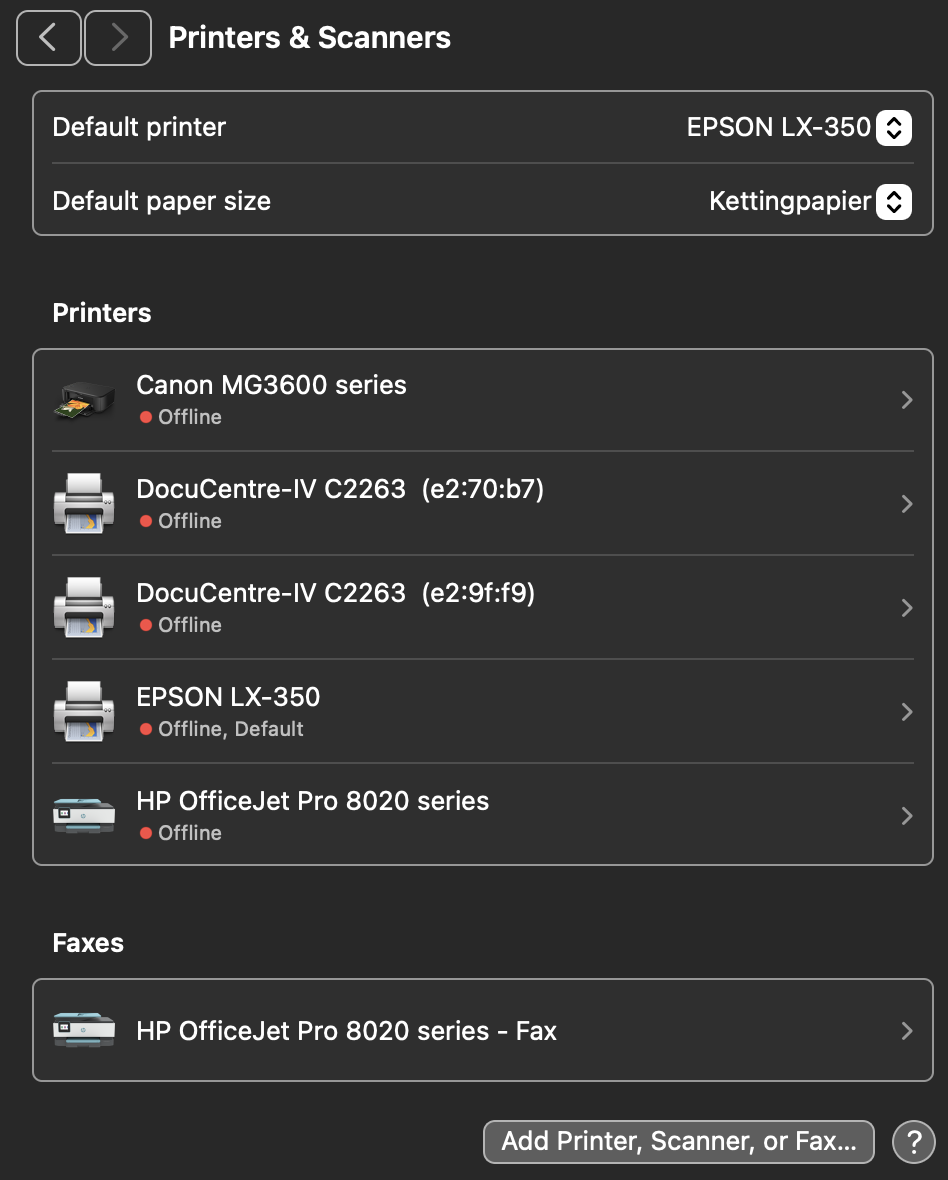
- If the printer is already installed, remove it first. Click the side arrow, then the remove printer button.
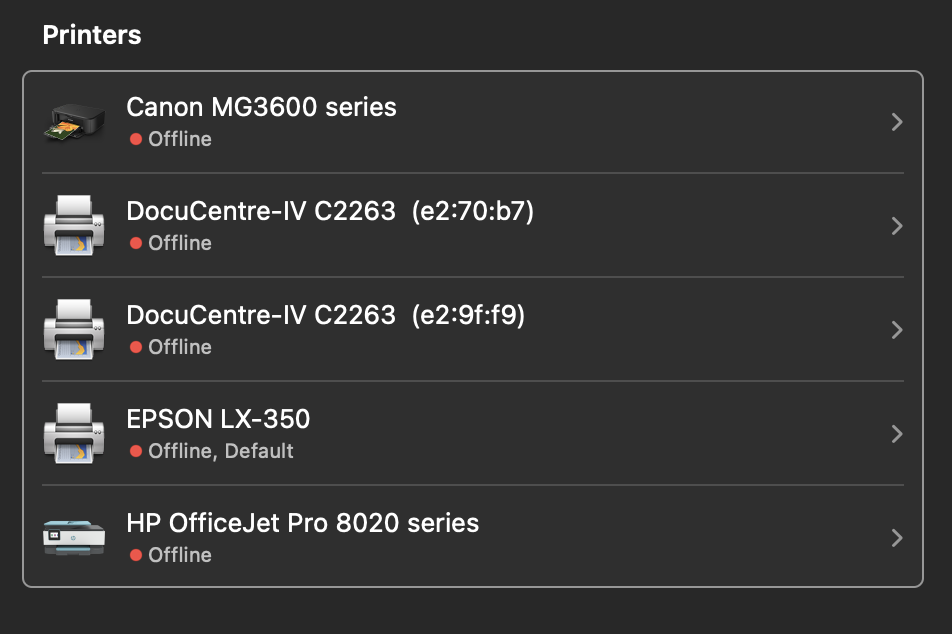
A confirmation prompt appears. Choose remove printer there as well.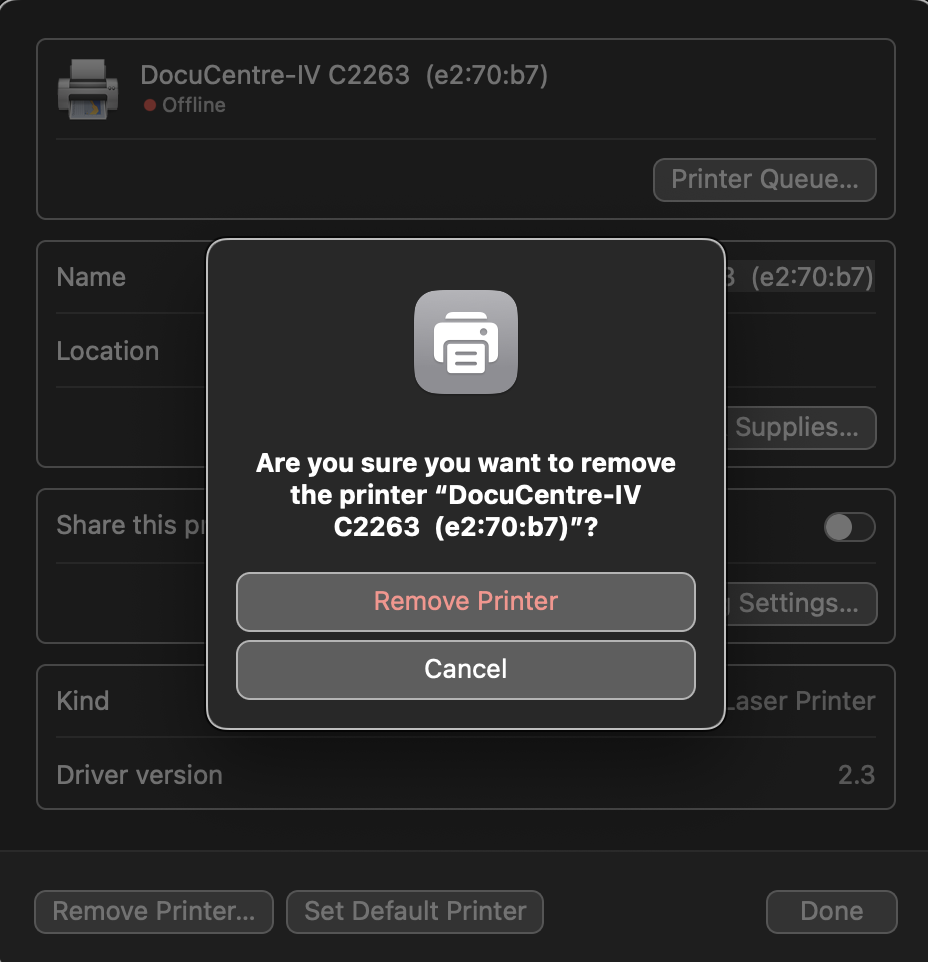
- Click the Add Printer button to add a printer.
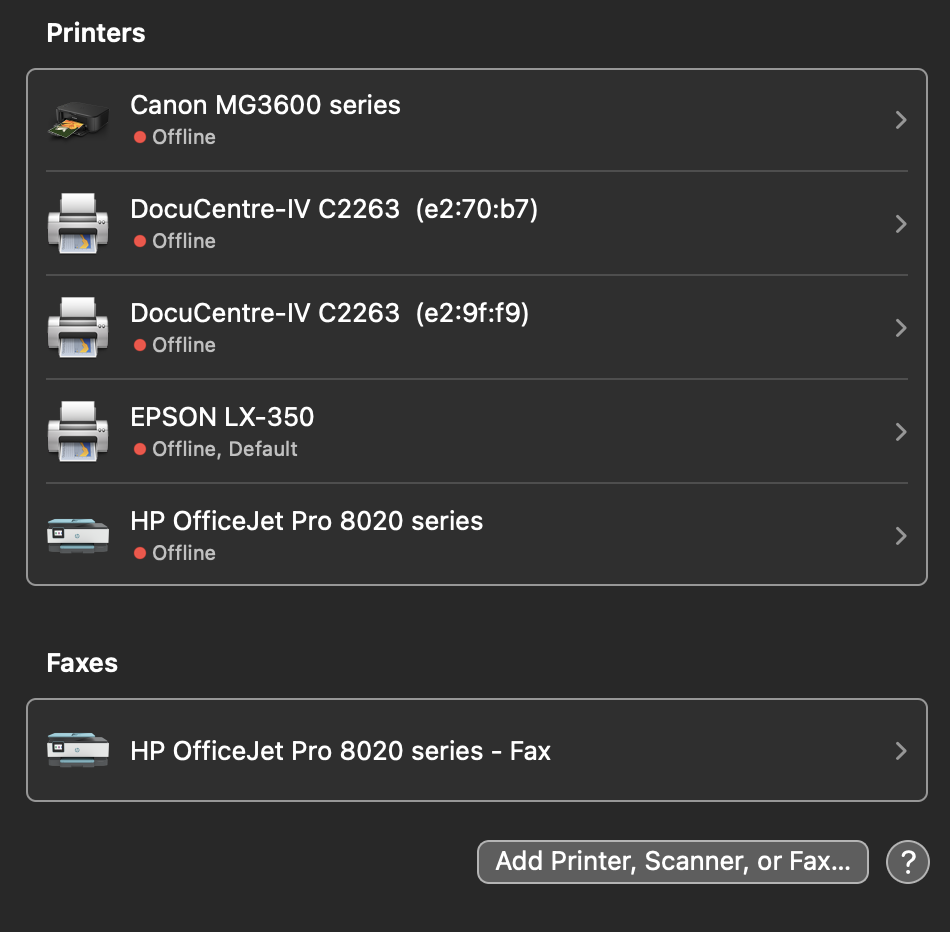
- A new window opens with printer options. Select the dot-matrix printer there.
- Select the standard 9 pin or 24 pin driver for your device from the drop-down menu. If you are not sure which one you need, repeat these steps with the different drivers until printing works.
- Click OK once you have selected the driver.
- Click Add to add the printer.
- Test whether printing the certificates works now. The margins may still be off. You adjust those in Halingo, as described in Adjusting the certificate margins.
Useful links: